- Click on the Purchases tab located in the top right taskbar of Fifopay, and then choose the Bulk Upload option.


- Click on the "Download Template File" to obtain an Excel spreadsheet template. Be sure to complete all required fields with the relevant details of the invoices you intend to upload for funding. Save the spreadsheet on your computer.
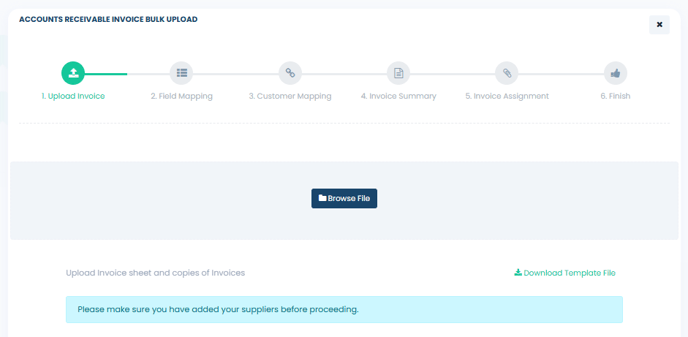
- To upload your saved file, click on the Browse File icon (illustrated below) to upload your completed invoice template.
-
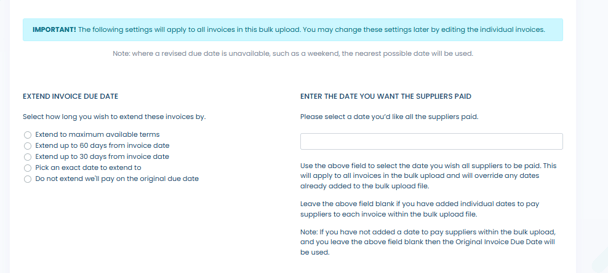
- Extend Invoice Due Date - In this section, you will choose the date on which you plan to repay these invoices to Fifo. Various options are available, and the selected date and terms will be referred to as the Revised Due Date for the invoices.
- Date you want Suppliers Paid - This is the date you would like Fifo to process payments for your suppliers' invoices. Please note that Fifo has a cutoff time of 1 PM for same-day payments. To ensure that your invoices are included in the same-day processing queue, they must be submitted and meet the necessary criteria before this deadline. You will then see a screen prompting you to enter the payment date for your suppliers and the desired extension of payment terms.You will then see a screen prompting you to enter the payment date for your suppliers and the desired extension of payment terms.
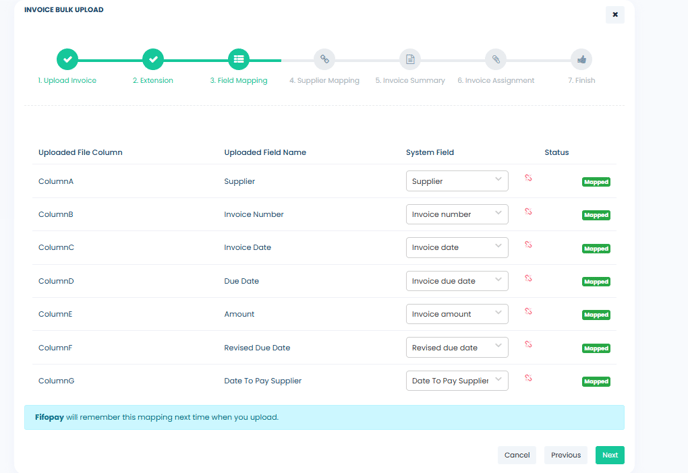
- During your initial Bulk Upload, you will need to map the columns in your Excel spreadsheet to the corresponding fields in the system. This step is required only once, as Fifopay will save your mappings for future uploads, streamlining the process for subsequent submissions.
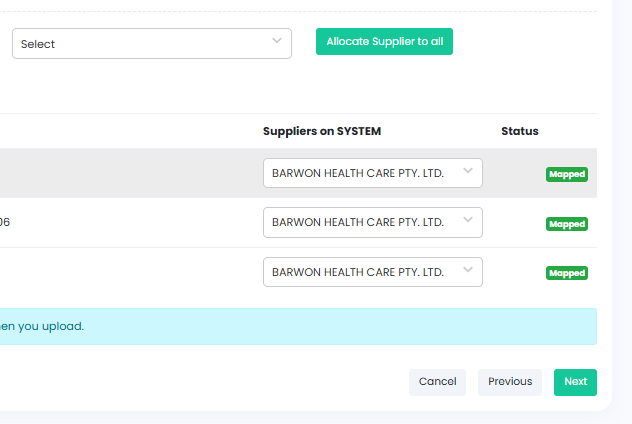
- During your initial Bulk Upload, you will need to map the suppliers of your invoices to the corresponding fields in the system. This step is required only once, as Fifopay will save your mappings for future uploads, streamlining the process for subsequent submissions.
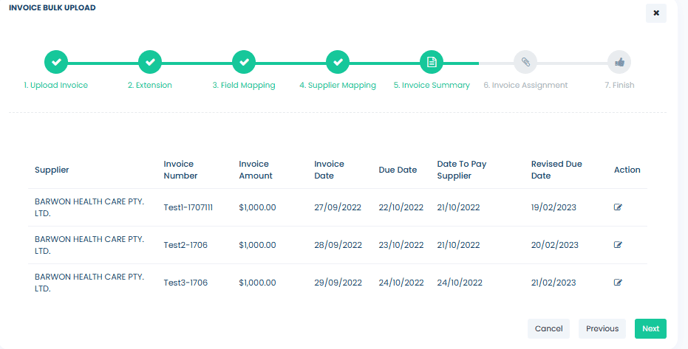
- You will then be shown an Invoice Summary that includes all the invoices you are submitting for payment. It is important to verify that this information accurately reflects the invoices you intend to submit. If any details need to be corrected, simply click the Edit icon in the actions column. Additionally, if there are any issues with your submissions, Fifopay will highlight them with red font notes for your attention.
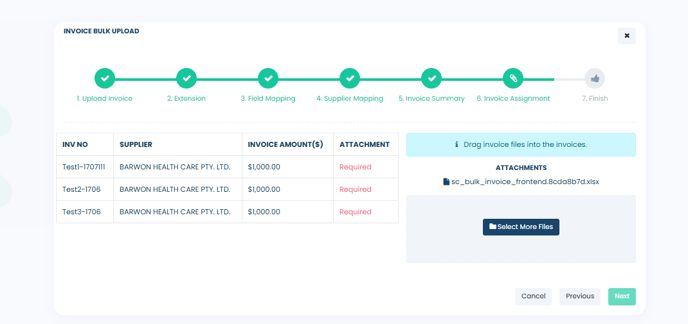
- In the final step, you will need to upload the invoice attachments for each invoice you are submitting. Click on "Select More Files" to upload the PDFs for each invoice. Once uploaded, these files will be displayed, allowing you to easily drag them to their corresponding invoices. Additionally, you can include multiple attachments for each invoice transaction if necessary.