
1. On your home screen under the Accounts Payable facility you will see an Add New button.

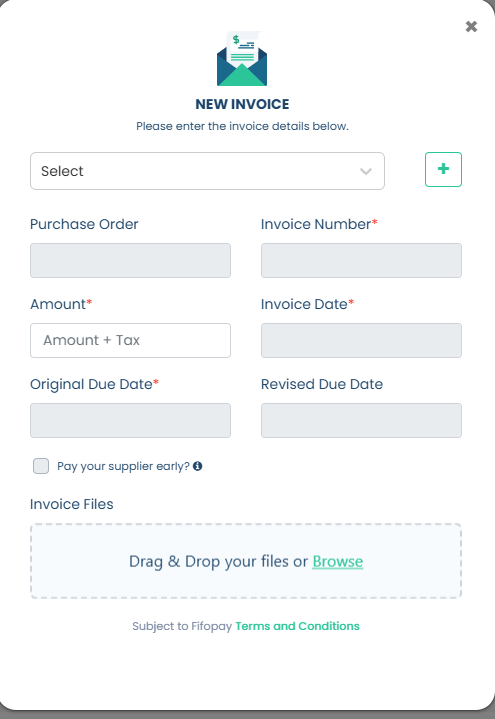
2. A pop-up window will appear prompting you to enter the invoice details.
-
Select a Supplier: Choose the appropriate supplier from the list. If the supplier is not available, please refer to the guide on "Adding a New Supplier on Fifopay" to add a new one.
-
Purchase Order: This field is optional and may be left blank unless applicable.
-
Invoice Number: Enter the exact invoice number as shown on the invoice.
-
Amount: Specify the total amount as indicated on the invoice.
-
Invoice Date: Ensure the date entered matches the invoice date exactly.
-
Original Due Date: Enter the original due date of the invoice.
-
Revised Due Date: Provide the date you intend to settle the invoice with Fifo.
-
Pay Supplier Early: If you wish for early payment to the supplier, please check this box and specify payment due date.
3. Once all required fields have been completed, please click Next at the bottom of the page to proceed with signing and submitting the invoice.
